How to add 3rd party acquisition plugin
Besides Cognex CIC cameras and other VisionPro supported GigE cameras, AlignPlus also supports 3rd party camera image acquisition. However, the prerequisite is that 3rd party SDK to be installed, and specific acquisition plugins to be manually placed in a given location before launching AlignPlus program.
Follow the steps below to add the 3rd party acquisition plugin:
-
Install the camera's SDK (Please contact Cognex engineer for specific version of the SDK that goes with the acquisition plugin)
-
Copy the camera's acquisition plugin files to "C:\ProgramData\Cognex\Designer\Plugins\Cognex\AlignPlusTemplateApplication\3rdCamera\Current". Cognex Designer will only load the 3rd party acquisition plugins from this folder on start-up (Please contact Cognex engineer to get these acquisition plugin files).

If certain camera brand is not needed, you can move its plugin files to "C:\ProgramData\Cognex\Designer\Plugins\Cognex\AlignPlusTemplateApplication\3rdCamera\Database", wherein plugins will be ignored by Designer.
-
Add "disableCameraScan" launch option to Designer’s shortcut to make Designer exclude the default VisionPro acquisition function and enable the 3rd party acquisition functions.
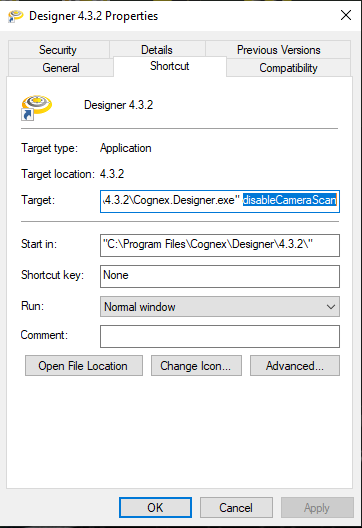 Note: For USB3 and high-speed cameras, Cognex recommends the use of the 3rd party acquisition plugin for optimal performance.
 -
Run Designer, open an AlignPlus Program and run it.
From Device drop down list on "Cameras and Lights" page under Calibration category in setup mode of the program, you can find all the available 3rd party cameras with IP address/serial number and brand name information attached.
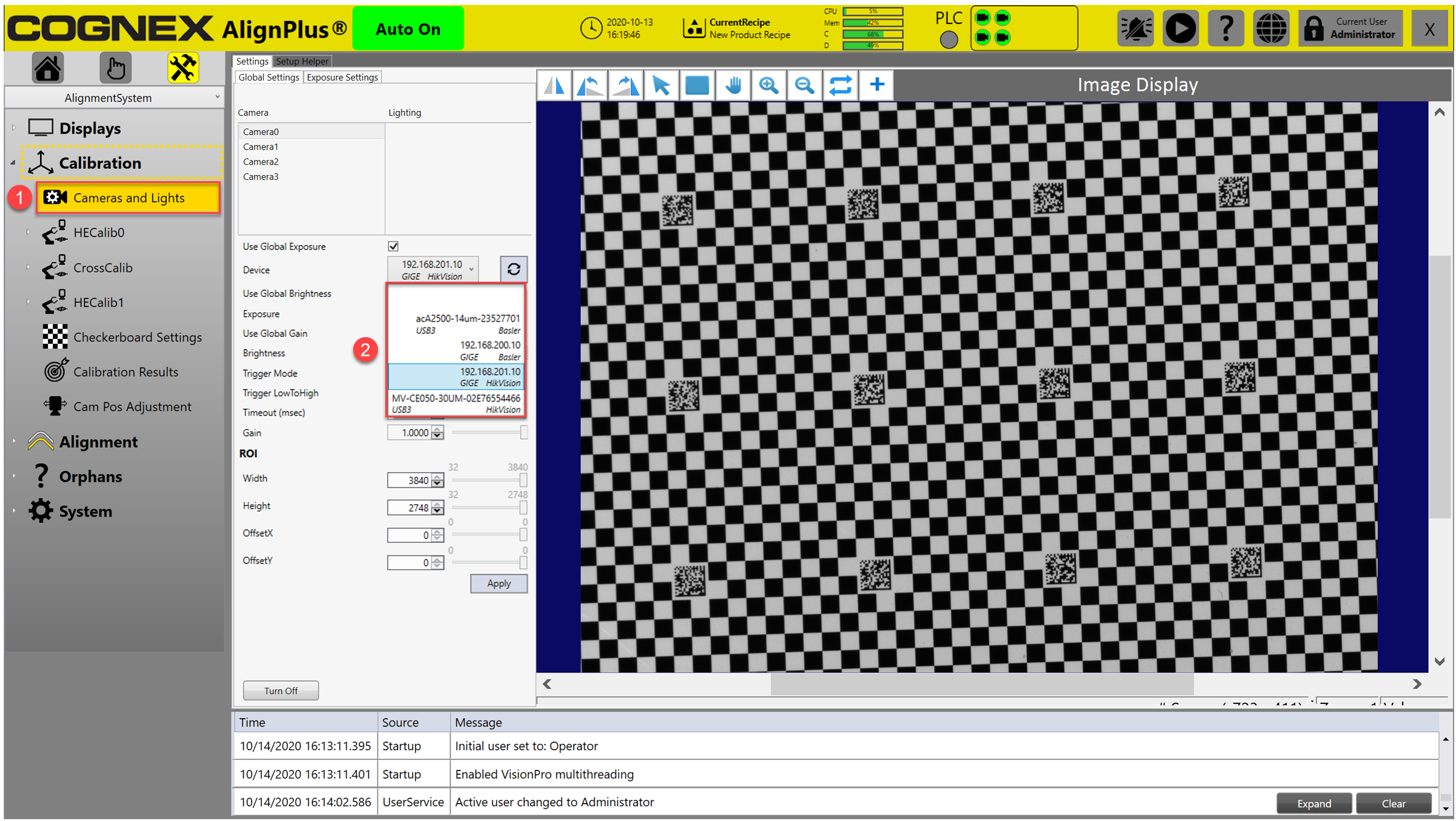 Note: For Basler GigE Cameras, if the brand name shown in the list is "Cognex", it means the default VisionPro acquisition function overrides Basler's acquisition plugin. If it shows "Balser" instead, it indicates that Basler's acquisition plugin is taking effect.